
Today, we’ll teach you how to track your rankings for keywords essential to your business. After all, losing rankings can mean significant losses both in sales and revenue, while improving rankings can significantly increase both. By tracking your rankings, you can react quickly to changes if needed and strategically plan and track SEO measures.
What Kind of Rankings Should I Track?
How to Add Keywords to the Rank Tracker
How Often Should Rankings Be Updated?
Which Device(s) Should I Choose for Rank Tracking?
Can I Track Organic Results Only?
The Rank Tracker Doesn't Show Any Data. Why?
How Can I Edit Keywords And Their Settings?
Can I Track Specific URLs? How?
What Kind of Rankings Should I Track?
The Rank Tracker helps you track rankings for any given keyword. Mostly, SEO specialists use a rank tracker to keep an eye on the website’s rankings for keywords essential to their or their customer’s business.
While that’s the Rank Tracker’s primary function, you can use it for additional purposes: For example, use it to keep an eye on your competitors' rankings for the exact same keywords to gain comparability. Or use the Rank Tracker to track ranking developments for pages you’re currently optimizing.
If you’re new to SEO, we recommend you start by just tracking your website’s rankings for keywords essential to your business. Usually, those are keywords with the most relevant traffic and the highest chance of conversions, covering products and product categories or services.
TIP: Conduct keyword research to identify which keywords to focus on. Check out our keyword research guide.
If you run a brick-and-mortar business, track local rankings for your area. To do that, simply add a state and city when adding new keywords to the Rank Tracker.
How to Add Keywords to the Rank Tracker
You need to add keywords to the Rank Tracker to track your rankings, be it locally, nationally, or internationally. You can add keywords from anywhere in cPanel SEO; we’ll explain more about that in a minute. You can also type in or upload any keywords you can think of and track your rankings for those — even if they’re not in our keyword database.
Head to Projects → Tracked Keywords. To add keywords, click Add Keywords.
- First, provide domains to track rankings for. Of course, that’ll be your domain, but you can track your competitor’s rankings, too.
- Add keywords manually or upload a .csv file if you kept a keyword list in excel, for example.
- Select the desired search engine, and, for local rankings, state, and city. Your Project’s search engine is set as default.
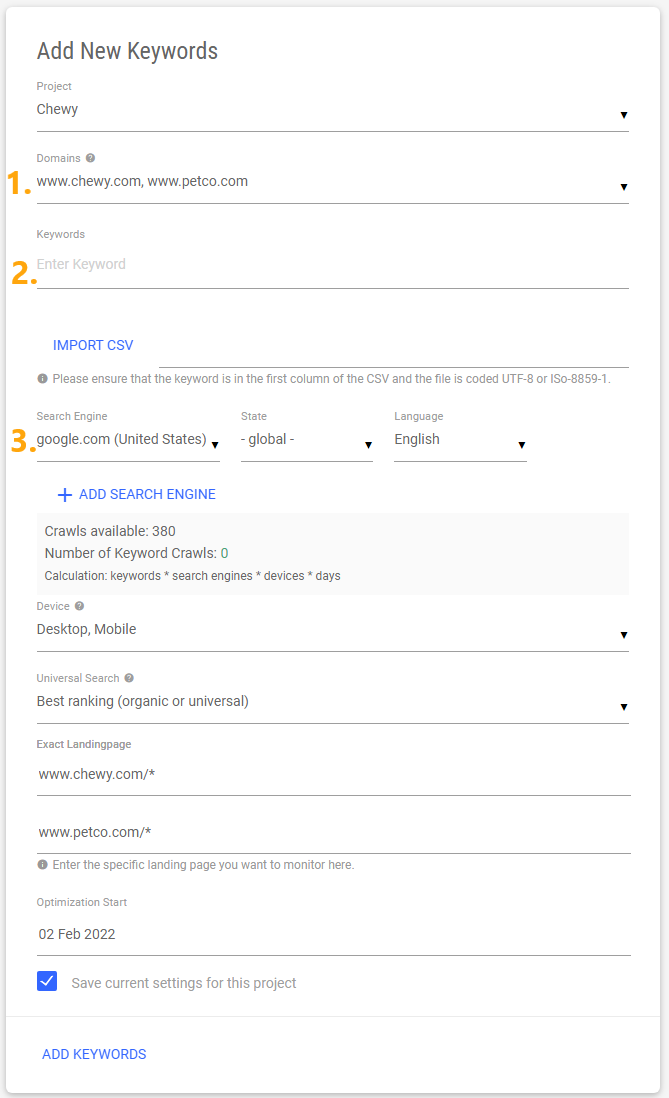
For more information on the remaining input fields and crawls, click the information icon.
Add Keywords from Anywhere In cPanel SEO
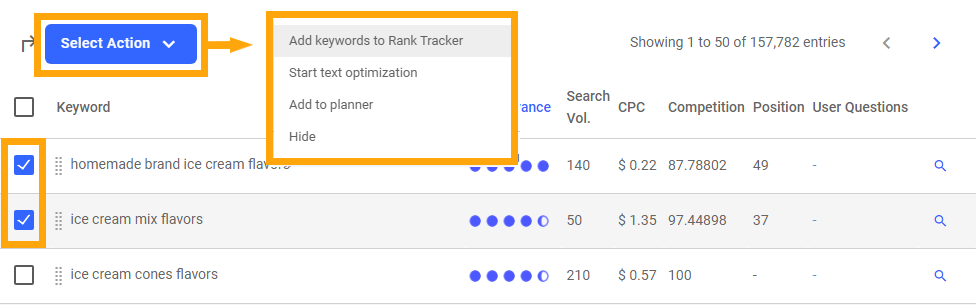
Whenever you come across a keyword, flag it, click Select Action, and add it to the Rank Tracker.
Check Out Your Rankings
A Quick Overview
Once you add keywords to the Rank Tracker, you’ll find a breakdown of your website’s ranking performance in the Rank Tracker Overview. Check out the Projects → Rank Tracker sidebar.
Use the charts to get an idea of
- Your Project Visibility for both Mobile and Desktop. It’s your custom Visibility score exclusively calculated for keywords in your Rank Tracker.
- The ratio of tracked keyword rankings in and outside the top 100. Your goal would be to maximize top 100 rankings.
- The number of rankings on each search engine results page (SERPs). Your goal would be to gain as many page one rankings as possible.
Remember to click the information icons for more details on each table.
Exact: Project Visibility
Why is there a second Visibility, you ask? Good question! Like Visibility, Project Visibility helps you measure how easily users find your website in search results. But there is an essential difference between the two!
The Visibility score is calculated based on a set of keywords that cover various industries. The same keyword set is used to calculate a Visibility score for every website, providing comparability.
But many of those keywords have no relevance at all for your website. If you sell ice cream, you’ll want to know your Visibility score for keywords that are useful to you. One that excludes dog trimming or homeownership, for example.
Project Visibility provides precisely that. It’s a Visibility score based exclusively on keywords in your Rank Tracker. It is especially helpful for Local and International SEO, for example. If you track your competitor’s rankings, Project Visibility provides a more precise comparison.
TIP: If you want to learn more about Visibility, check out our post “What Is Visibility And Why Does It Matter?”
Understanding Tracked Keywords
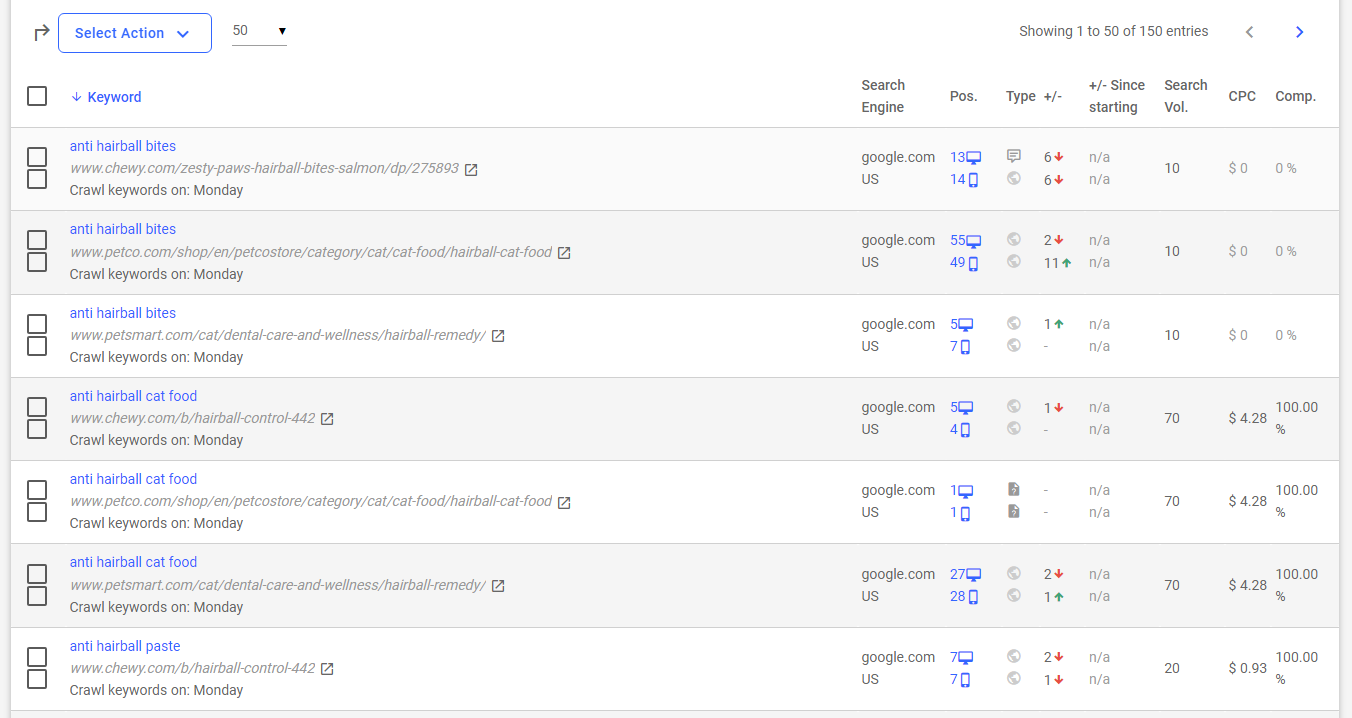
Once you added keywords to the Rank Tracker, head to Rank Tracker → Tracked Keywords to see:
- Tracked keyword
- Best ranking URL of respectively tracked domain.
- Search engine selected for tracking.
- Position for the selected device(s).
- Search result Type. Hover over the icon for more information.
- Changes in Position since the last crawl as defined in your Rank Tracker settings for your keyword.
- Changes in Position since tracking began.
- Search volume, CPC (Cost Per Click), and Competition.
How to Use the Tracked Keywords Table
Use the Tracked Keywords table to strategically decide which pages you want to optimize to increase their rankings and how you want to prioritize them. Your goal should always be a position one ranking, or at least page one (position 1-10).
Prioritize pages/rankings based on:
- How well they help you sell your products/services (CPC, search intent).
- How often users use a keyword for search (Search Volume).
- How hard it will be to gain or improve page one rankings (Competition).
- Their relevance to your business.
For example, focus on keywords/pages that could directly increase sales if their rankings improved, such as landing- or product pages. Then, think about supporting helpful content which answers user questions, builds trust and authority, can be used for internal links, and has a good potential for receiving backlinks.
Also, use this table to make sure vital rankings didn't drop. If they did, try to find out why (e.g., did your competitor's rankings increase? Was there a recent Google Update?) and optimize your page based on your findings.
Use Filters for Better Results
This table can get crowded if you track many keywords for your and your competitor's domains. Filters help you narrow down table results and find what you’re looking for. For example, add a Domain filter to see keywords/rankings for a specific tracked domain.
Or, add a Position filter to quickly identify rankings on result pages two and three (positions 11-30). Those rankings have a great potential to increase with little effort if you optimize those pages.
Rank Tracker FAQ
How Often Should Rankings Be Updated?
With a Pro or Agency package, you can choose to have your rankings updated multiple times a week. When adding new keywords, you are asked to define the days you want your rankings updated. You can choose any day of the week and as many days per week as you like.
For most businesses, one or two ranking updates per week are fine. However, if you’re in a highly fast-paced market where content gets outdated or obsolete within days (such as news), you are wise to update rankings daily.
As for which day to choose for your update, think about when you’ll be doing SEO during your week; most SEO specialists like to start their week with updated rankings and choose Mondays. But if you know that you’ll be doing SEO and checking rankings first thing on Thursday morning, you might want to choose Wednesday.
Whatever day(s) you choose, make sure you use the same day(s) for all tracked rankings in your Rank Tracker.
What Are Crawls?
Checking a ranking for a keyword requires a so-called crawl. Based on your plan, you have a pre-defined number of crawls available each week. For example, the Pro plan comes with 2,500 weekly crawls for the Rank Tracker. That means that you can track up to 2,500 rankings (not keywords!) on a weekly basis.
We calculate required crawls as follows:
Keyword*Search Engines*Devices*Days
Let’s say you run three ice cream parlors in the Boston area. Once a week, you want to check mobile local rankings for the keyword ice cream parlor for each town; Boston, Salem, and Cambridge. That means you would track that keyword for three location-based search results (aka search engines), which requires one crawl for each town or area you want to cover per chosen day and device.
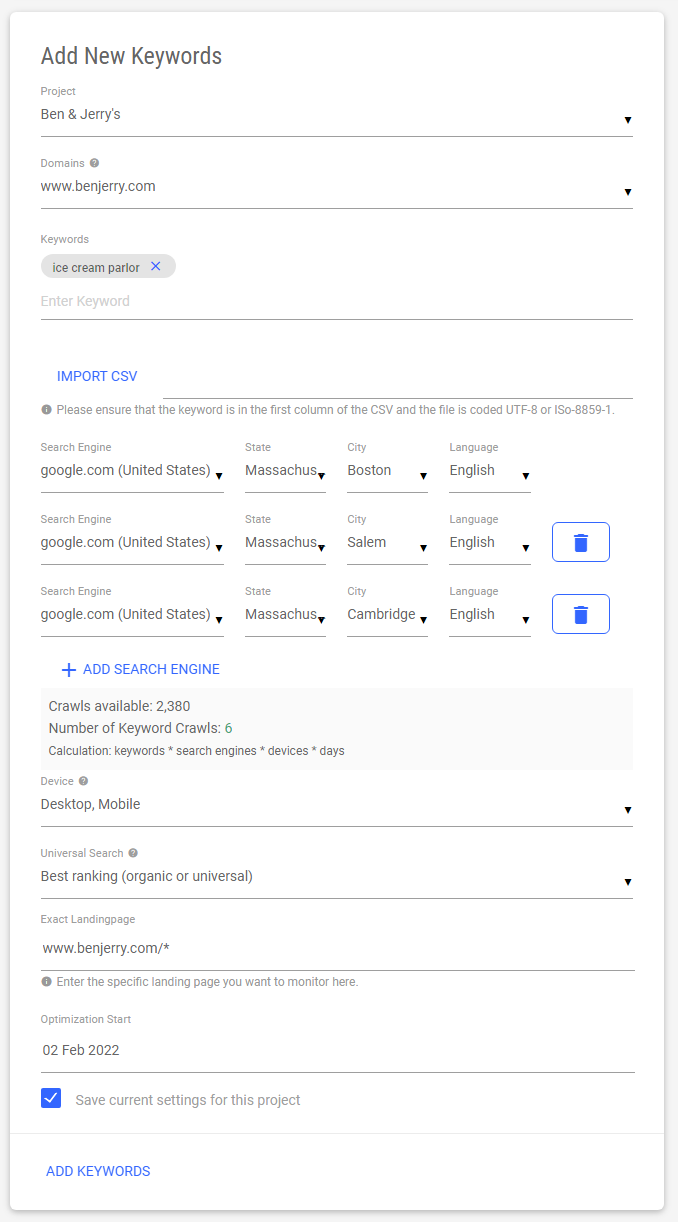
So you’d track three rankings for one keyword once per week on one device (Mobile), which requires a total of three crawls. If you wanted to check those rankings twice a week, your total would go up to six crawls. Or, if you added another keyword — say, ice cream store — for all three locations and check your rankings twice each week, your total would be at 12 crawls.
Which Device(s) Should I Choose for Rank Tracking?
When adding new keywords to the Rank Tracker, they will be tracked for Mobile and Desktop by default. That is because search engines tend to show users different or differently listed search results depending on the used device. For example, if you use a smartphone, you’re more likely to be shown more local search results near you, based on your exact location.
However, you can decide to track your rankings for Mobile or Desktop exclusively. When adding new keywords, think about whether users are more likely to search for those terms using their phone or a laptop/computer. As a rule of thumb, B2C keywords are more likely to be used on mobile devices, while B2B keywords are often used while in the office on desktop devices.
To know for sure, we recommend you pull data from Google Analytics. Check Audience → Mobile → Overview to learn the total number and percentage of device categories (desktop, mobile, tablet) used to visit your website in a given period of time.
What is Type?
Search results are comprised of different types of results, and we want you to know what type of search result your ranking content is.
Of course, there are the ‘classic’ text-based search results with their blue, clickable title, called organic results. You also have videos, images, news, products, reviews — those are called universal search results. Since universal search results are so diverse, you’ll see the following types in the Rank Tracker:
- Globe: ‘Classic’ organic result
- Text bubble: Review
- File: Product
- Tiles: Image or video
What is Position 1,1, or 3,2?
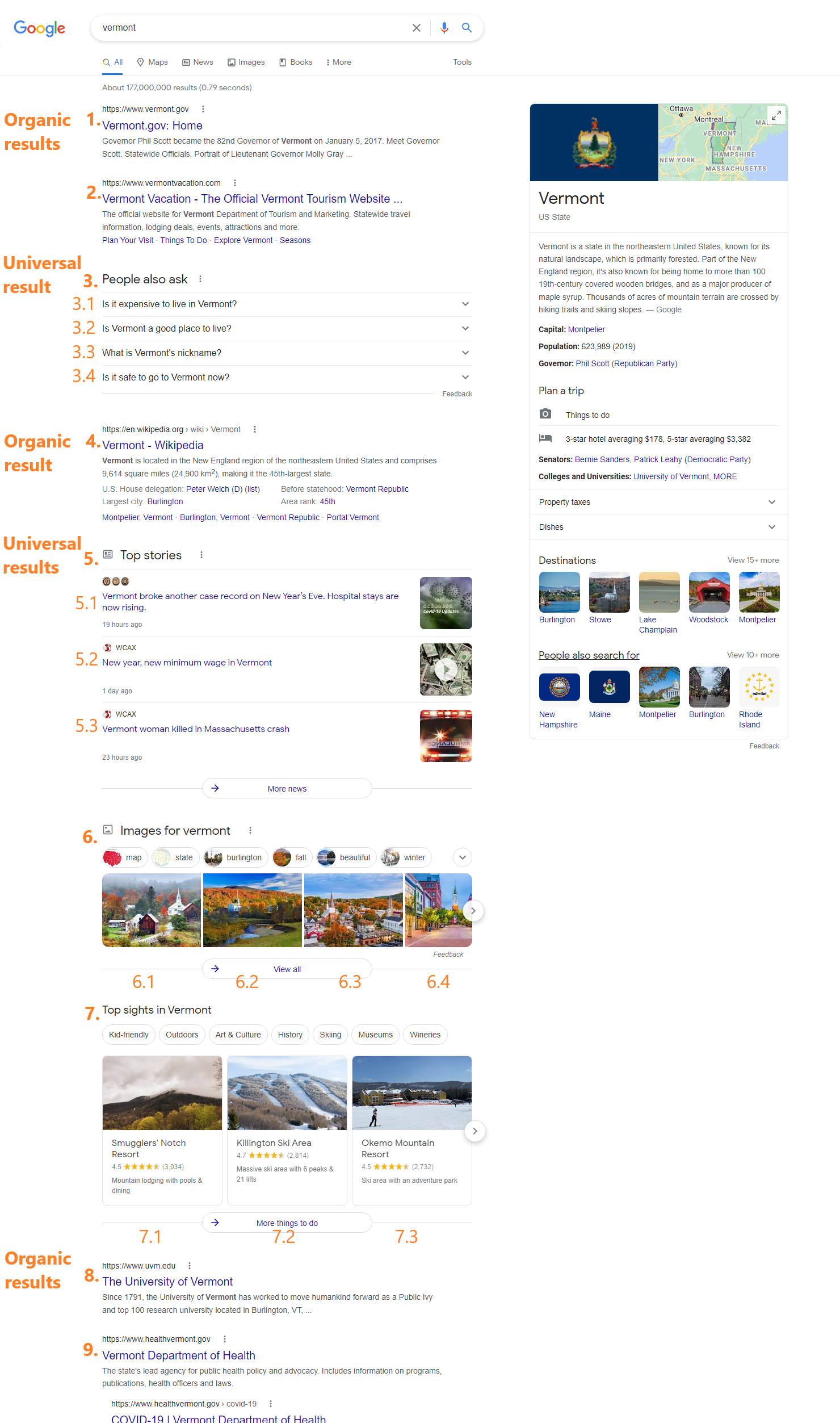
These positions specify so-called universal search results — everything pulled from one of the various Google databanks. Those results are typically grouped based on their types, such as images, videos, maps, or news. Some are listed side by side instead of underneath one another.
To measure those modern-type search results, we determine the position of those groups within search results and then the position of the exact result within this group.
Take a look at the example below. Position 5,3 would be the third news article in Top Stories, and Position 7,2 would be the Killington Ski Area, second position in the group Top sights in Vermont.
Can I Track Organic Results Only?
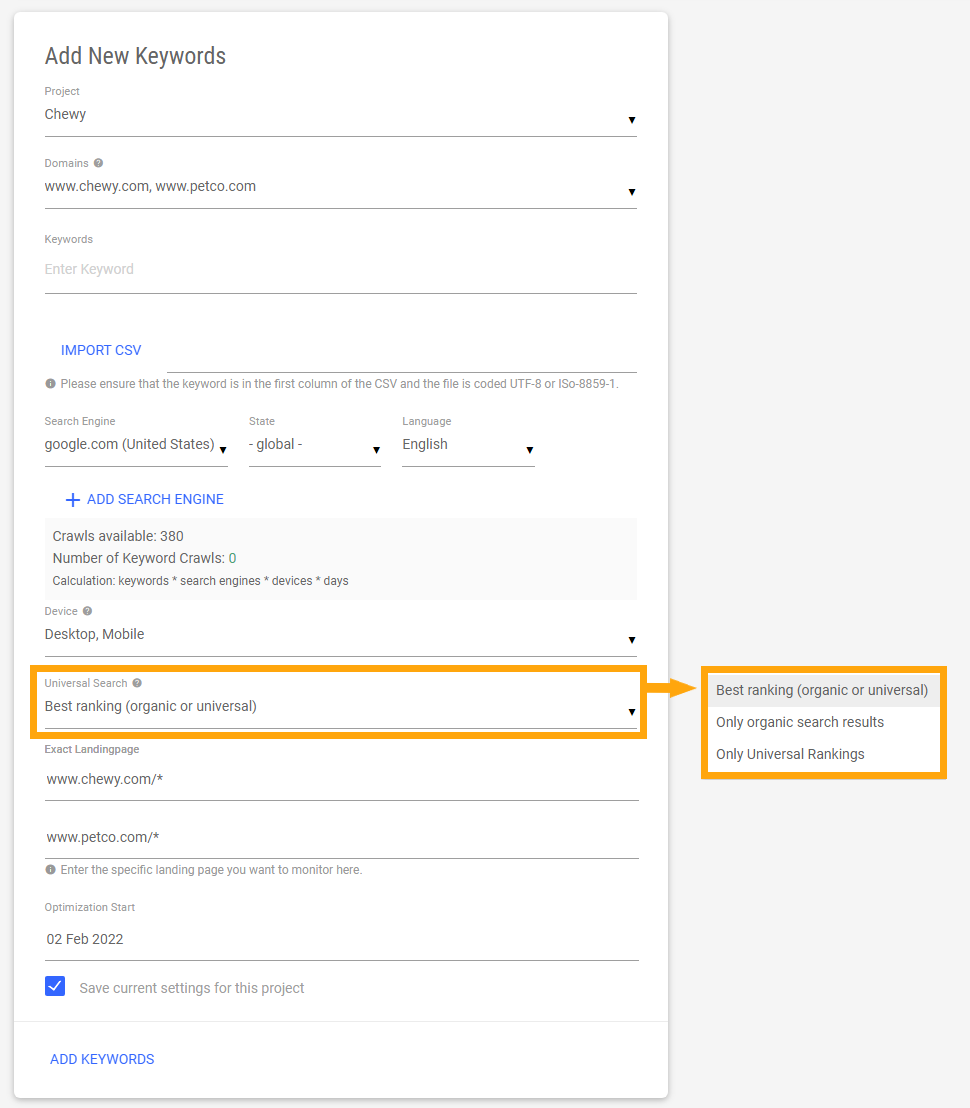
Sure. While adding new keywords, you may choose between the following settings:
- Default: Best ranking (organic or universal)
- Only organic search results (‘classic’ text-based results)
- Only universal rankings (all results that are not ads)
The Rank Tracker Doesn’t Show Any Data. Why?
As mentioned before, you can add any keyword you can think of to the Rank Tracker — even keywords that are not in our database. If you add keywords from our database, we have a long history of data associated with that keyword, so we can provide it instantly within the Rank Tracker.
However, if you add a keyword from outside our database, there is no history of data to show — yet. This data will be pulled beginning with the next crawl day as per your chosen day(s) for ranking updates. Until then, it will be marked as n/a.
How Can I Edit Keywords And Their Settings?
Did you discover a typo in a keyword or want to change its setting? No problem. To edit a keyword and its settings, flag the respective keyword and click Select Action. There, you’ll find all kinds of options to choose from.
Can I Track Specific URLs? How?
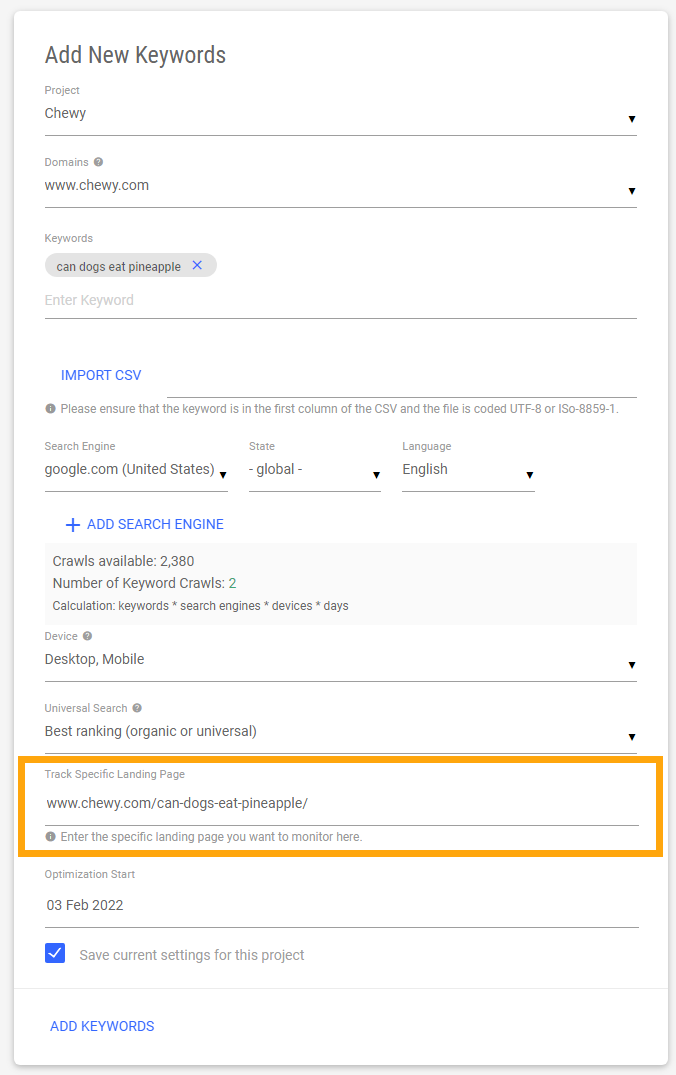
Yes, you can. By default, you will see your best ranking for a tracked keyword, but you can track specific URLs, too. If you have crucial landing pages you want to track at all times; then this option is perfect for you.
To do that, click the Add Keywords button. In Track Specific Landing Page, you can specify a landing page (URL) for which you want to track rankings.
Comments
0 comments
Article is closed for comments.