
cPanel SEO users may need to make adjustments to their account settings to match their preferred language, date format, keyword comparison settings, and their login information such as their email address and password.
Users can make these changes by navigating to the user icon in the top right of the screen and selecting "Settings" which will bring them to the page pictured below.
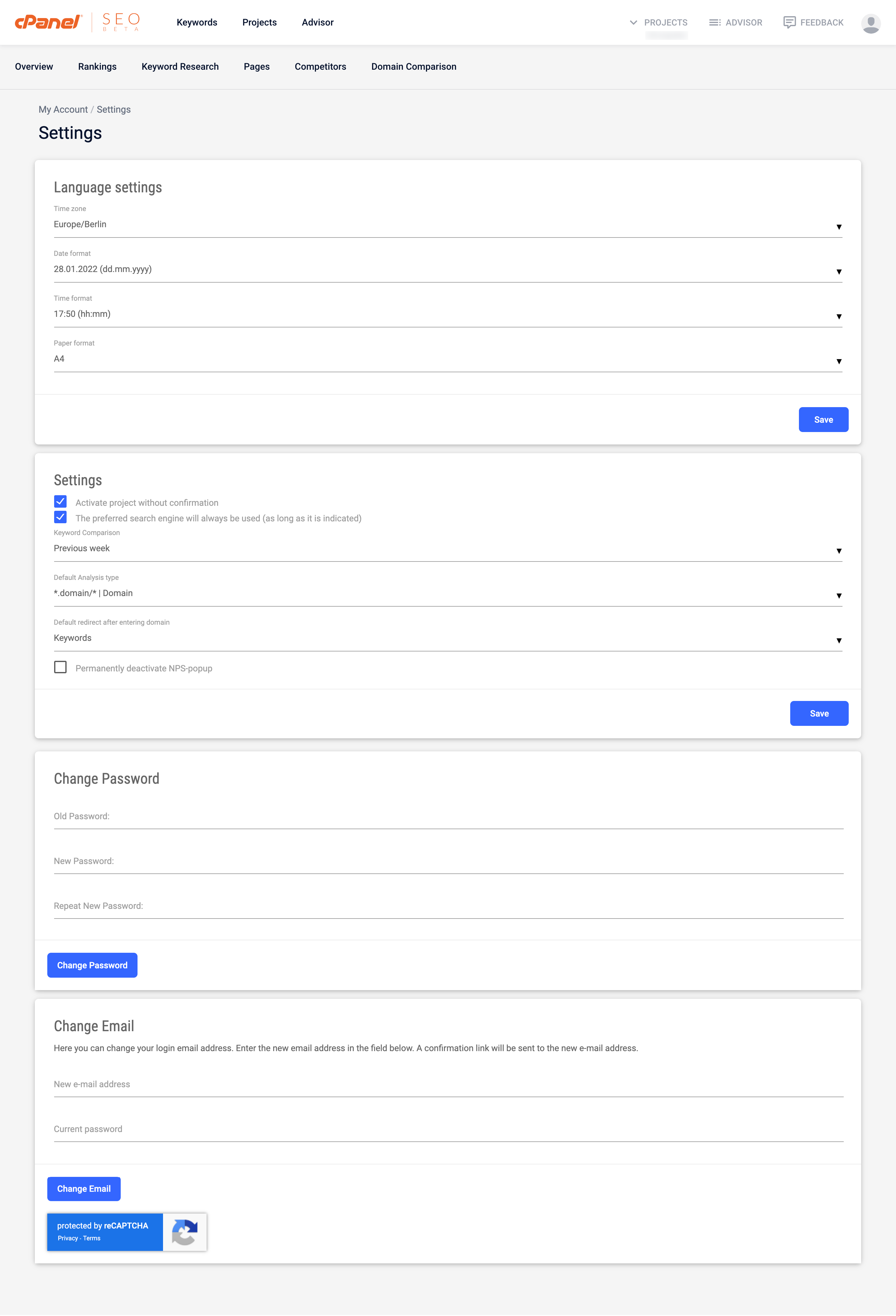
Language Settings
cPanel SEO offers support for multiple time zones, date formats, and time formats. Users can adjust these settings by simply selecting their preferred setting in the drop-down menu for each setting.
Settings
The settings section allows the user to make several adjustments to the way cPanel SEO presents information to them. This includes options like automatic project activation, search engine preferences, keyword comparison settings, and default analysis type (domain/subdomain). Users can also permanently deactivate the cPanel SEO NPS-popup if they prefer to not provide feedback about the product.
Change Password
Users can change their password in this section by first providing their old password and then typing in their new password twice.
Change Email
Users can change their email by simply typing in the new email address they would like to use and then typing in their current account password to ensure that they are authorized to change the email address on the account.
Comments
0 comments
Article is closed for comments.